
Read. Verify. Share.
Turn time spent switching documents into time for thinking.
From READMEs and architecture diagrams to PDFs and Office files, KatanA is a desktop app for opening, reading, editing, and sharing project documents in one workspace.
01
Start with the documents already on your machine.
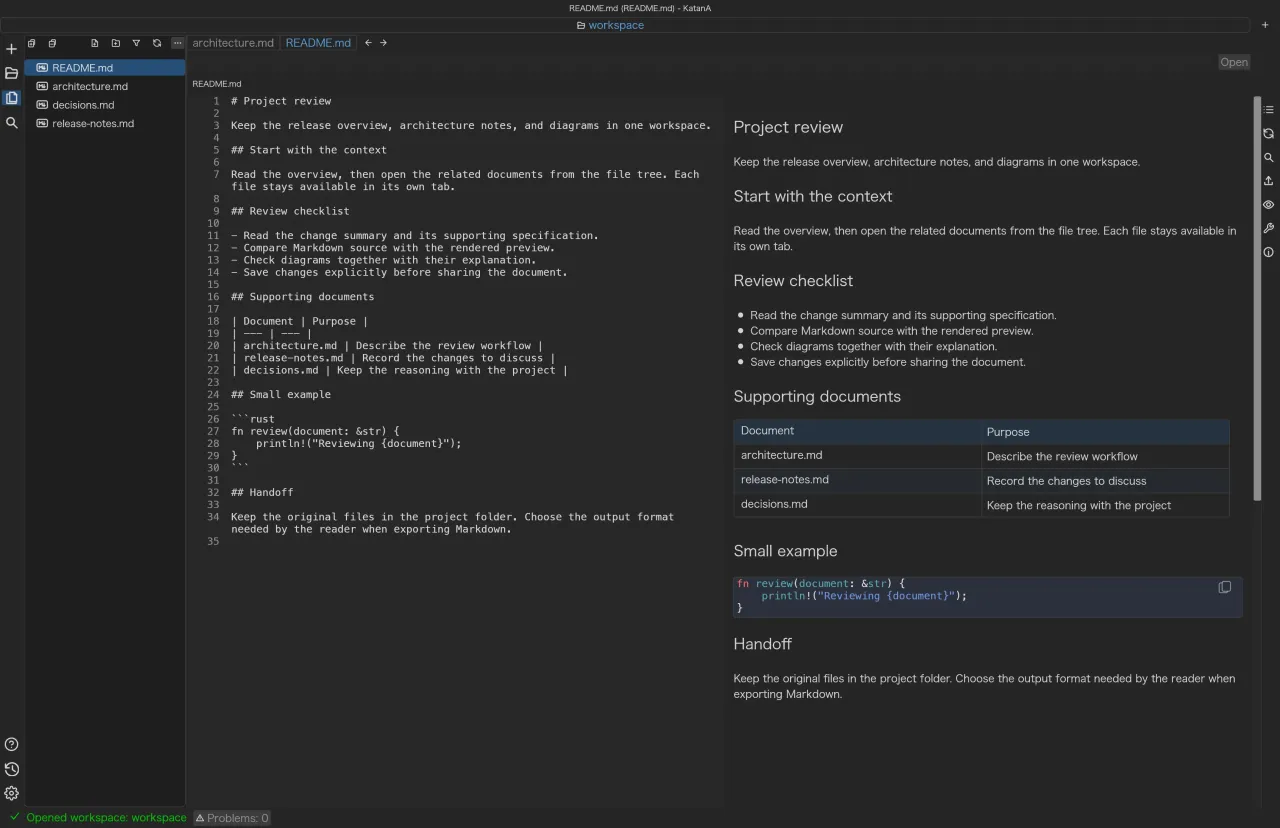
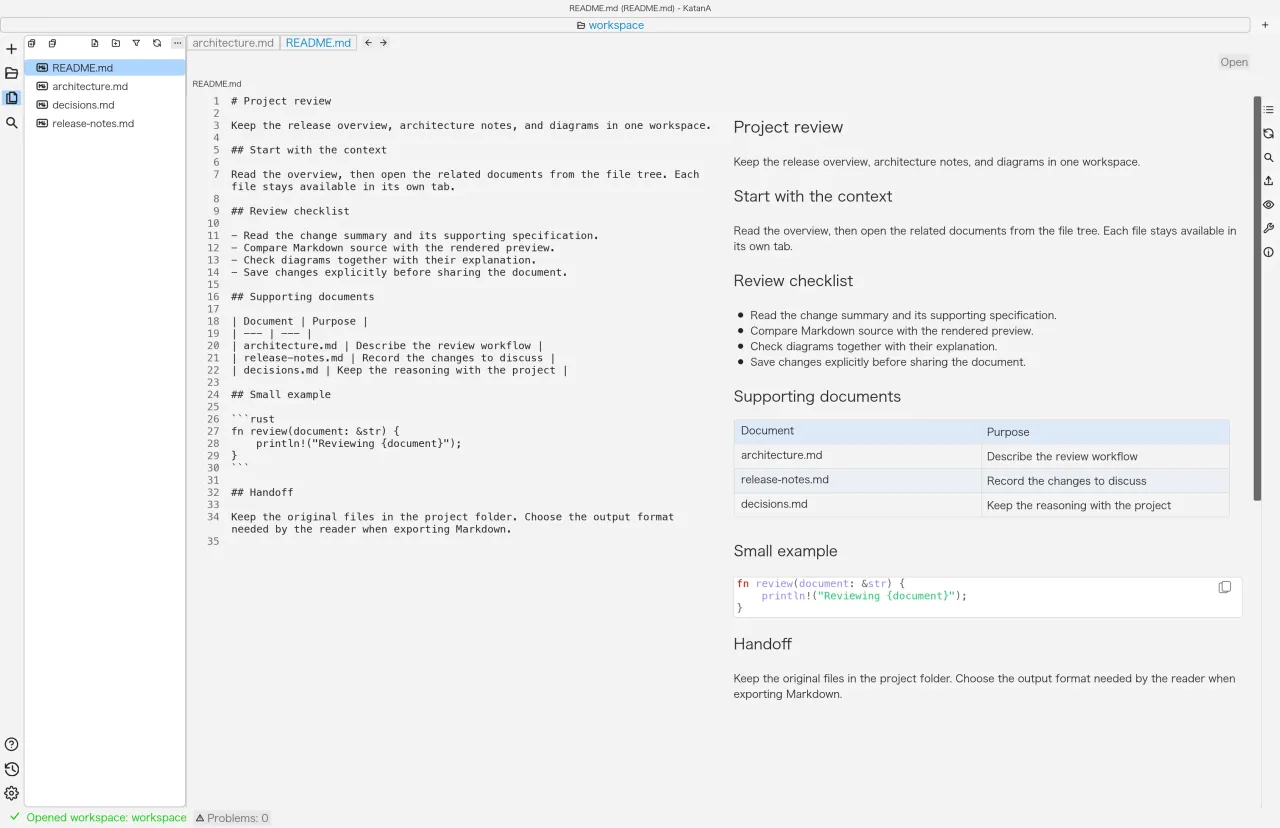
There is no need to move your files to a new repository. Open a local project and choose the reading workflow that fits.
Make a repository an easier place to read.
Move between READMEs, specifications, and supporting material using the file tree and tabs. Workspace search covers Markdown with case, whole-word, and regular-expression options.
- Open the folder containing your documents as a workspace.
- Select a document from the file tree and open related material in another tab.
- Use in-document search or Markdown workspace search to jump to what you need to check.
Use the folder structure as context while comparing related documents in one workspace.
Check source and rendered output together.
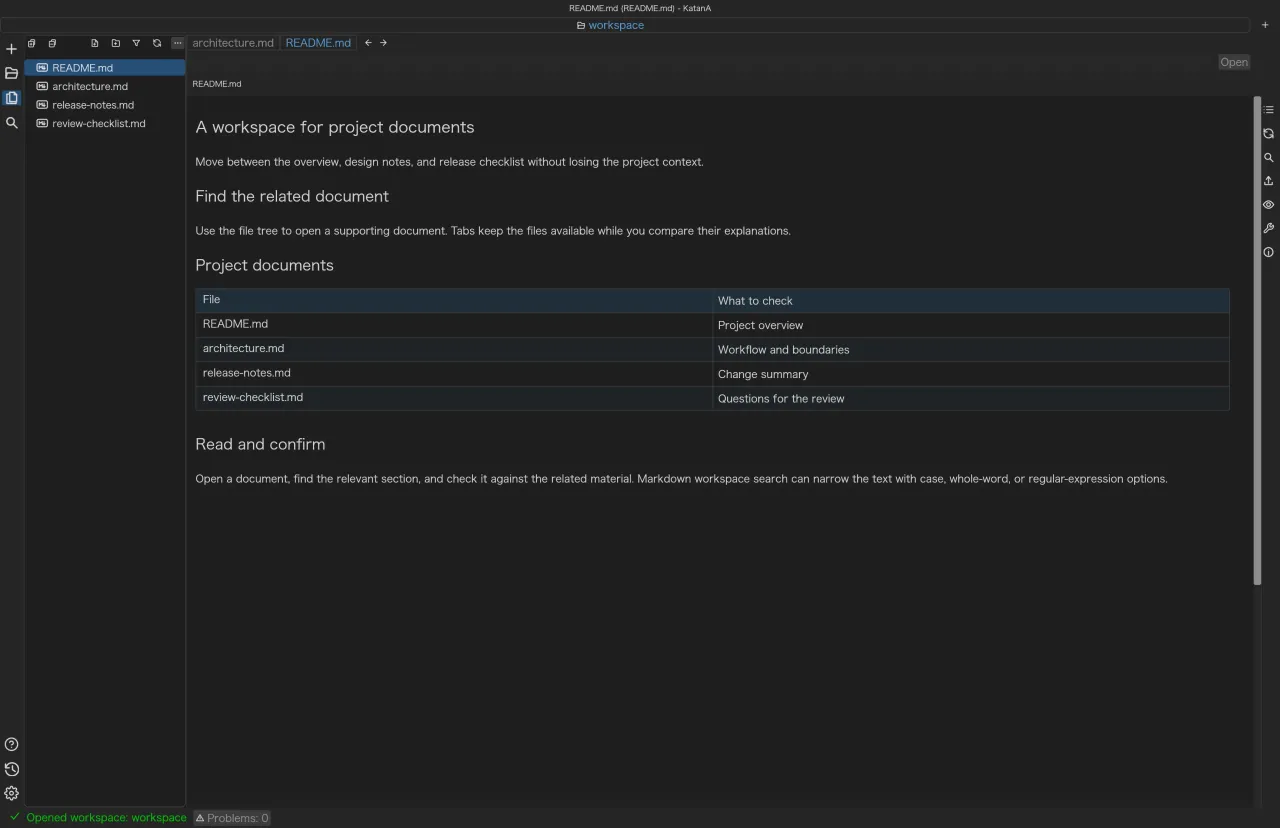
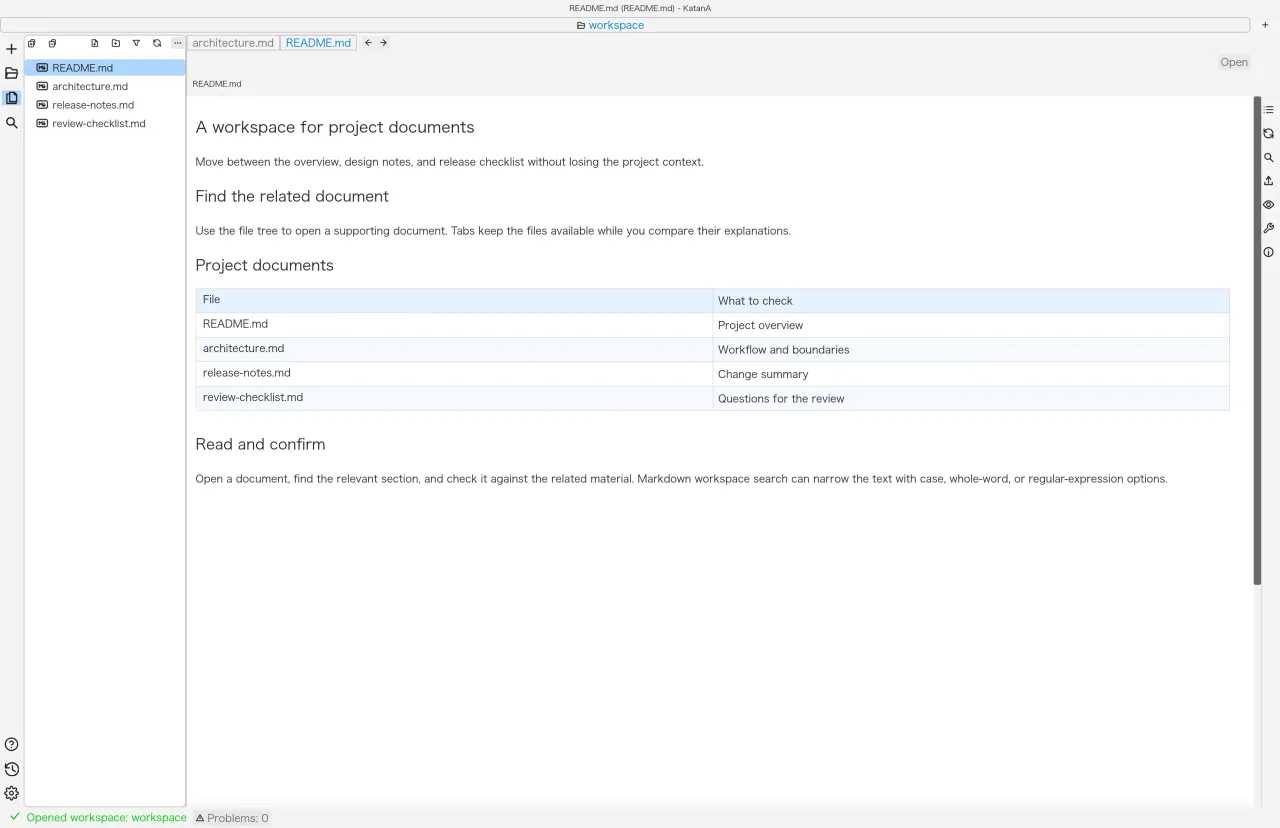
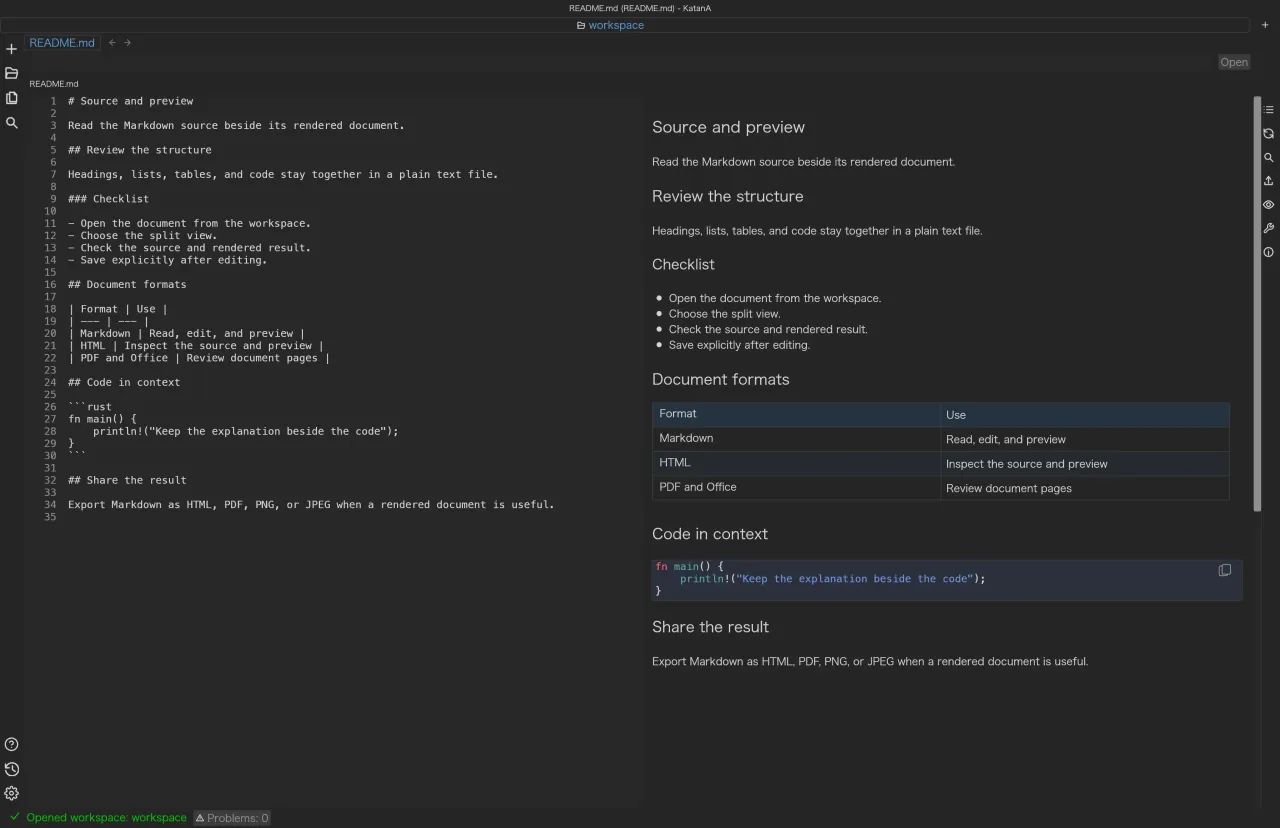
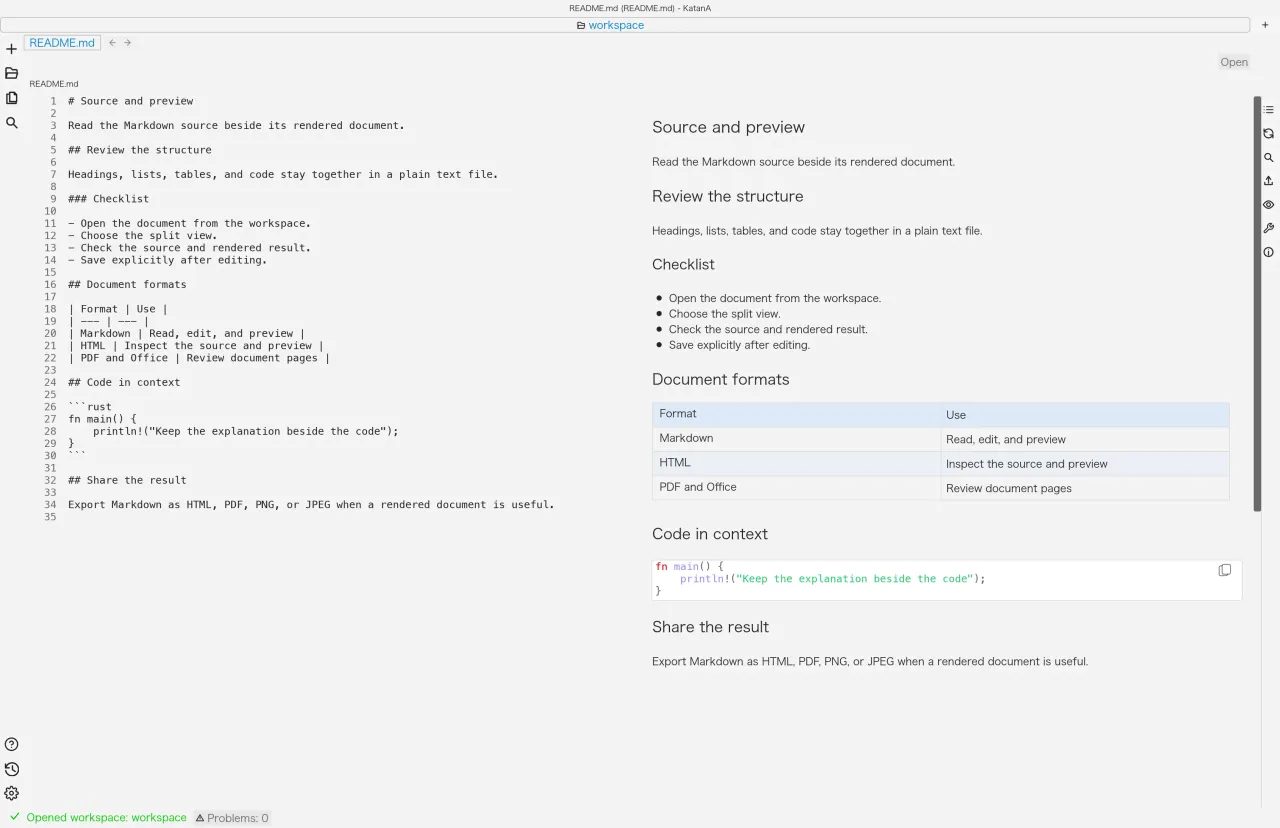
Use split view for Markdown source and preview to verify changes to text and syntax. Adjust split direction, pane order, and the table of contents to suit the task.
- Open a .md or .markdown file and switch to split source-and-preview view.
- Edit text or headings and check the resulting preview.
- Review the content and save it. Export to HTML, PDF, PNG, or JPEG when needed.
Review edits on screen before explicitly saving them. KatanA does not assume autosave, so perform the save action.
Keep diagrams in the same context as the prose.
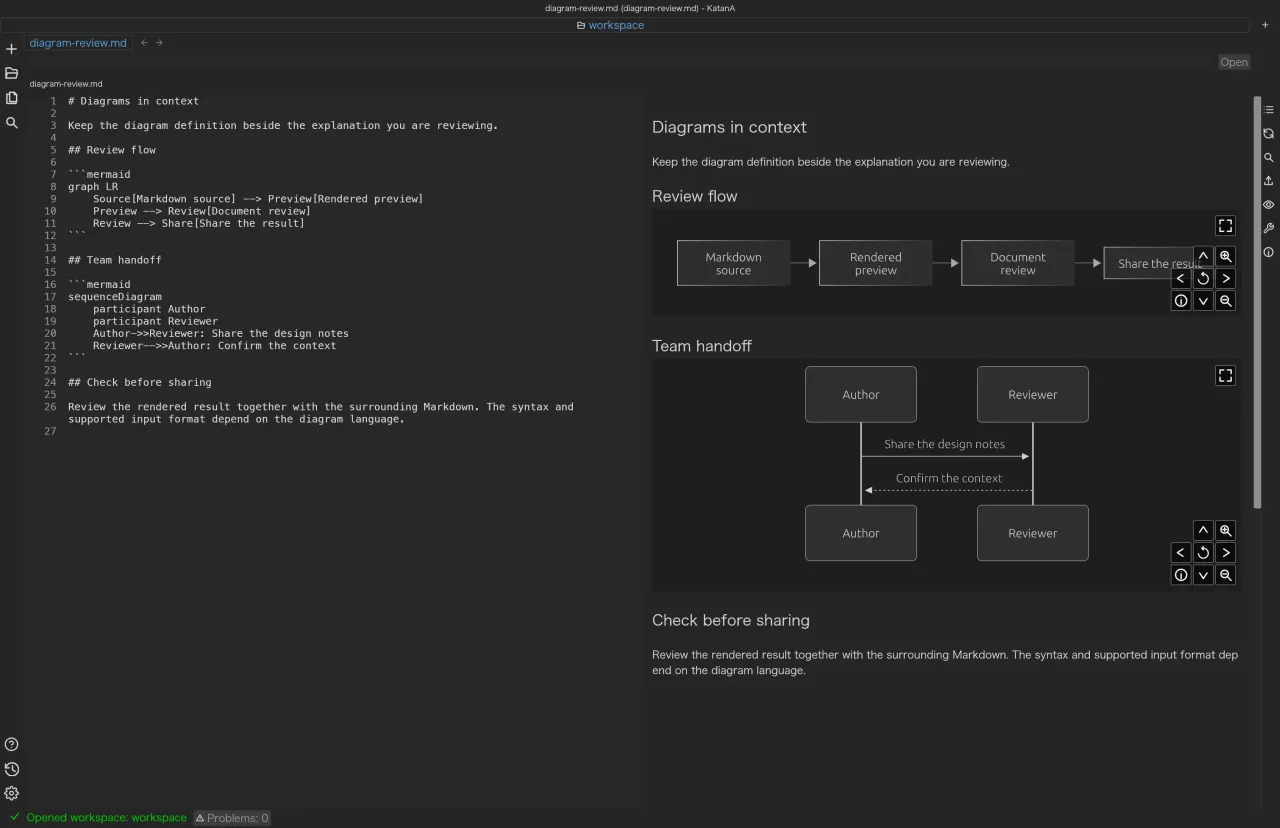
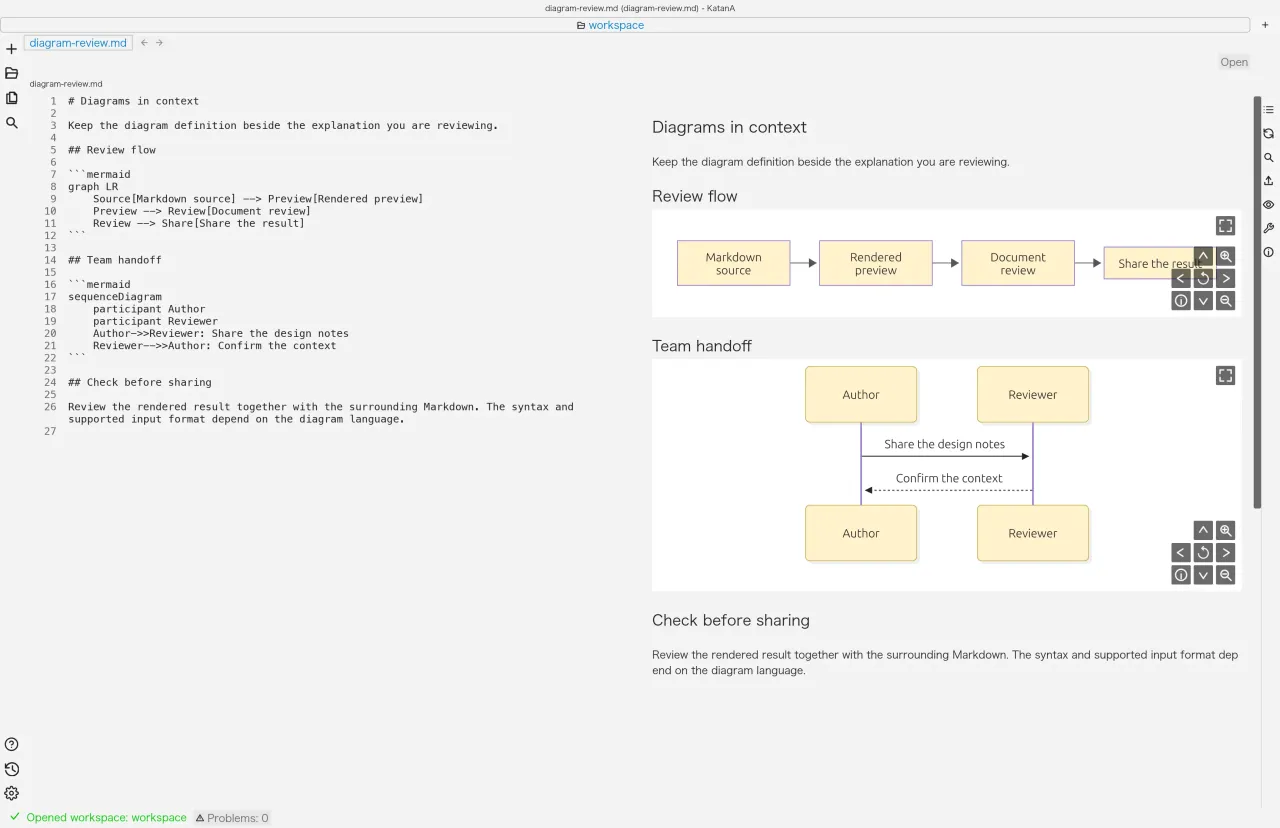
Render Mermaid, PlantUML, and Draw.io inside Markdown. Check the connection between a diagram and its explanation before opening another tool.
- Set the code-block language to mermaid, plantuml, or drawio.
- Use @startuml / @enduml for PlantUML and uncompressed XML for Draw.io.
- Check the diagram and surrounding explanation in preview, then export the document if needed.
Review diagram definitions and explanatory text together. Check the format-specific guidance below for syntax and input requirements.
02
Different formats, one place to work.
Not every format is editable in the same way. The following separates what each format supports from its input conditions.
Markdown
Supports viewing, source editing, and split preview for .md / .markdown. You can also export to HTML, PDF, PNG, and JPEG.
Save explicitly after editing.
HTML
HTML documents support viewing and source editing. They use a separate HTML preview path from Markdown, so you can edit existing web materials while checking them.
Changes are written to the file when you save.
PDF / Word
Open PDF and Word (DOCX) files in the dedicated document preview and move through their pages.
View-only; it does not directly edit PDF or DOCX content.
Excel / PowerPoint
Switch sheets in Excel (XLSX) and slides in PowerPoint (PPTX) to review the material.
View-only; it does not replace every editing or display feature of Office apps.
Mermaid / PlantUML
Render diagrams from Markdown code blocks. Select mermaid or plantuml; PlantUML input must be wrapped in its start and end directives.
PlantUML requires @startuml / @enduml.
Draw.io
Render a diagram by placing uncompressed XML in a drawio code block. Check the input format before using it.
Uncompressed XML containing <mxfile> or <mxGraphModel> is required.
03
Open your first document in three steps.
Start with the README from a project you already use. You can try the workflow with existing files.
Get the package for your OS.
Use the macOS, Windows, or Linux buttons below to download a file from the public release. See the dedicated page for installation instructions.
Open the folder containing your documents.
Open the project folder as a workspace. If needed, configure scan depth, excluded directories, and visible extensions.
Read, verify, and share.
Select documents from the tree and continue with tabs, search, and split view. When exporting Markdown, choose the format that fits the destination.
04
Know these boundaries before you start.
The important boundaries are part of the workflow too.
Office and PDF are for viewing.
Binary documents cover PDF, DOCX, XLSX, and PPTX. They open in preview-only mode and do not provide the same editing features as Office applications.
Binary documents have an input limit.
The maximum size is 256 MiB. KatanA validates MIME type and file signature as well as the extension, so files whose metadata and contents disagree cannot be opened.
Review and save your edits.
Markdown saving is explicit. Preview refresh and writing to disk are separate, so save before you finish your work.
Check the result with your actual material.
Complex layouts and diagram syntax should be checked with the files you use. Include reproduction conditions when reporting an issue in the app.
Questions worth answering first.
Is KatanA only for Markdown?
No. It also handles HTML, PDF, Word (DOCX), Excel (XLSX), and PowerPoint (PPTX). Editing and viewing coverage differs by format.
Which operating systems are supported?
Public distributions are available for macOS, Windows, and Linux. Check the package and target environment before installing.
How is KatanA different from the KatanA libraries?
KatanA is the desktop app you use directly. The series libraries are developer components for embedding document models, rendering, UI, and related capabilities in your own app.
KatanA / Desktop
Make your next review with KatanA.
Try the tree, tabs, and preview workflow with documents you already use.